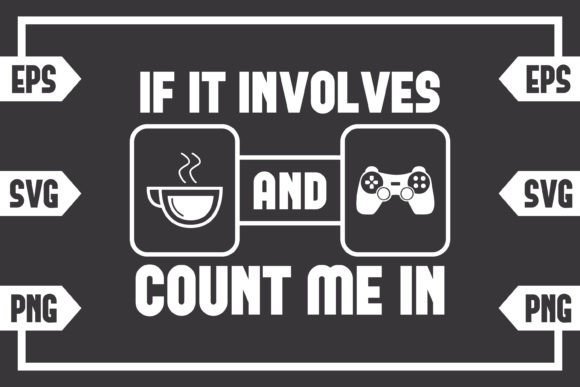
If It Involves Coffee and Gaming Control: How to Nail Your Digital Download Projects
You found the perfect design. The phrase “If It Involves Coffee and Gaming Control” speaks directly to your soul—because honestly, nothing fuels a late-night raid or a lazy Sunday quite like a steaming mug beside your controller. You clicked purchase, downloaded the .zip file, and now you’re staring at three bundled files: an SVG, an EPS, and a high-resolution PNG. This is where the real journey begins, and where a surprising number of crafters, small business owners, and hobbyists stumble. Not because the files are lacking, but because some simple, preventable mistakes creep in that can waste time, materials, and money.
First, Know What You Actually Bought
Let’s get the most overlooked detail out of the way: this is a digital download only. No coffee mug, no gaming controller decal, no physical vinyl sheet will land in your mailbox. You’re buying a .zip archive containing professional-grade artwork files. This point still confuses first-time buyers who skim the description too quickly. They wait for a package, then realize they need to unzip and use the files themselves. It sounds basic, but checking the product type before purchasing saves frustration. The “digital only” note isn’t a limitation—it’s actually a superpower. You get to choose exactly how this coffee and gaming design lives in your world: on a ceramic mug using sublimation, on a heat-pressed hoodie, as a etched glass decal for your game room, or even framed as wall art. You just need to match the right file to the right method.
The Three Files Are Not Interchangeable
A common first-timer error is thinking “a file is a file” and grabbing whichever one opens by default. Double-clicking the SVG might launch a web browser instead of your cutting machine software. Dragging the EPS straight into a word processor yields a low-quality preview. Treating the PNG like a cut file results in your machine carving out a messy square instead of the crisp lettering you expected. Each format has a job, and knowing the difference keeps your finished product clean and professional.
The SVG: Your Cutting Machine’s Best Friend
Scalable Vector Graphics are the go-to for Cricut, Silhouette Designer Edition, and similar software. They’re resolution-independent, meaning you can scale the design to fit a giant banner or a tiny phone case without losing sharpness. The mistake many make here is using a rasterized SVG, or importing a PNG when their software specifically asks for an SVG. If you attempt to cut the PNG directly, your machine will trace the pixel edges, often producing a jagged or bloated cut line. Instead, always upload the SVG into your design space. Another oversight: forgetting to ungroup elements or detach overlapping letters if you want to work with individual words. The phrase “If It Involves Coffee and Gaming Control” might arrive as a single compound path. Learning to ungroup and rearrange can transform a single-line design into a stacked look for a narrow koozie or a wide car decal. Also check that your software actually supports SVG upload. Basic Cricut Design Space handles SVG, but some older Silhouette versions require the Designer Edition upgrade. If you ignore that, you’ll pull your hair out wondering why the file won’t load.
The EPS: Precision for Professional Print and Editing
EPS files are vector workhorses for Adobe Illustrator, Corel Draw, and Inkscape. They’re often preferred by print shops because they maintain color separations and scale beautifully. A mistake here is assuming EPS works like a JPEG. Opening an EPS in a photo editor like Photoshop will rasterize it, throwing away that infinite scalability. Open it in vector programs for the best result. If you’re aiming to produce merchandise with super fine detail—say, a laser-engraved metal coffee tumbler—the EPS gives you the control to adjust stroke weights and simplify paths without degrading the design. Many creators skip the EPS entirely, but if you plan to send the coffee and gaming control artwork to a professional printer for labels or apparel, an EPS is often their preferred format. It saves you a back-and-forth where the printer asks for “vector files, please.”
The PNG: 300dpi Transparency Makes All the Difference
A high-resolution PNG with a transparent background is incredibly versatile, but it’s also the most commonly misused file. 300dpi ensures crisp prints at full size or smaller, but many people immediately place it into a Canva or Word document, stretch it far beyond its pixel dimensions, and then wonder why the final print looks fuzzy. The rule: never scale a PNG up. Use the SVG or EPS if you need larger dimensions. The transparent background is a gift for mockups, layering onto photos of mugs, or printing on dark paper without a white box. However, some beginners forget that transparent doesn’t mean “no background color in the letters themselves.” The design’s text is typically solid black or a given color; you may need to recolor it in a photo editor to match your project palette. Another blunder: using the PNG for sublimation without checking if your software handles transparency correctly—sometimes you’ll get a faint background haze if the file isn’t properly converted. Always view the PNG on a dark background first to spot any ghost pixels or rogue edges.
Overlooking the License Limits Can Hurt Your Small Business
You’re excited to sell T-shirts featuring the If It Involves Coffee and Gaming Control design at your weekend market booth. But did you read the license that came with your purchase? Many digital design bundles from marketplaces include a standard commercial use allowance, but some restrict the number of physical end products or prohibit reselling the digital file itself. A costly mistake: buying a digital design, printing it on hundreds of mugs, and later finding the creator’s terms only allowed personal use or limited runs. This can lead to takedown notices or awkward customer service interactions. Always check the product listing or the readme.txt inside the .zip. If no license is stated, reach out before scaling production. Even if you’re just a hobbyist who gifts items, clear license knowledge keeps you on the right side of the design community.
Ignoring Material and Color Choices Undermines the Design
That clever phrase deserves a surface that does it justice. A frequent disappointment comes from applying the design to a textured or uneven material that breaks up the lettering. The delicate curves of “Gaming Control” might vanish on a coarse ceramic mug, especially if using thin vinyl. Choose smooth substrates—glossy mugs, fine-grain canvas, or coated decal paper—to preserve the sharp vectors. Similarly, color contrast matters. If you cut the design in dark vinyl and adhere it to a dark notebook cover, your witty coffee and gaming message literally disappears. Test a small swatch on your material first. With the transparent PNG, you can overlay it onto product photos to preview legibility. This quick step prevents wasted blanks and a design that’s only visible up close.
Assuming Your Software Can Handle the File Without Proper Setup
Not every device comes ready to read SVG or EPS out of the box. Some users download the .zip on a tablet, try to open the SVG with a generic file viewer, and see nothing but code. Others try to import the EPS into free online editors that flatten the vector into a soft, pixelated mess. Before you buy any digital cut file, know your software’s file type compatibility. Cricut Design Space plays well with SVG but won’t touch EPS. Silhouette Studio Basic Edition needs the Designer Edition to accept SVG, otherwise you’ll need to trace the PNG image—leading to lower quality. Inkscape, a free alternative, handles both SVG and EPS beautifully, though you might need to install extensions for EPS import. If you’re a mobile-only crafter, the PNG will be your primary file, but be mindful that you can’t cut from it without a separate vector conversion. Better to transfer the SVG to a desktop for cutting.
Rushing Through the Unzip and Organization
A surprisingly common error: buying multiple digital bundles and dumping all unzipped folders into a single “Craft Files” dump without clear naming. Six months later, you can’t find the If It Involves Coffee and Gaming Control SVG among the clutter. When you download, immediately unzip (don’t just double-click and view inside—actually extract to a dedicated folder). Rename the folder with the design name and date of purchase. Save the license text and preview image alongside the working files. This small habit saves you from re-buying files you already own and makes retrieval a breeze. While we’re on the topic of unzipping: extracting directly to a cloud-synced folder like OneDrive can sometimes corrupt paths. Extract locally first, then copy over if needed.
Forgetting to Test Cut and Preview Before the Final Run
You’ve loaded the SVG into your cutting machine, the mat is ready, and you hit “Go.” Halfway through, the blade catches a tiny disconnected shape or the weeder fills you with regret. Many crafters skip a test cut on scrap material. Even a perfectly crafted vector can misbehave if scaled incorrectly or if the machine’s firmware interprets a complex path differently. Draw a small rectangle around a portion of the design, resize the “If It Involves Coffee and Gaming Control” text to your target dimensions, and run a quick cut on a scrap of the actual vinyl or cardstock you plan to use. Check that the thin parts of the font (like the inside of “a” or “o”) don’t lift or tear. Adjust pressure settings, blade depth, and speed based on that test. This ten-minute step can prevent a thirty-minute weeding nightmare.
Neglecting to Customize Beyond the Base Download
A big draw of digital designs is that they’re starting points, not dead ends. Yet many crafters hit a wall thinking the black-and-white lettering is all they can use. With the EPS or SVG in a vector editor, you can easily change the phrase’s color, add a drop shadow, incorporate a coffee bean icon, or combine it with another design for a truly unique gift. For instance, layer the text over a silhouette of a game controller or a steaming cup. Use the PNG on a patterned background for a scrapbook page. The “what you get” in your .zip file is a versatile toolkit. The mistake is treating the files as a static product rather than raw material for your creativity. Just make sure that if you modify and sell, you check whether the license permits derivative works for commercial use—most do, but it’s wise to verify.
Thinking Bigger: Projects That Let This Design Shine
Beyond the obvious T-shirt or mug, the If It Involves Coffee and Gaming Control design works perfectly for less expected items. Because you have a high-res transparent PNG, you can create custom stickers for laptops, personalized coasters for game nights, or even a door sign for a home arcade. The SVG’s smooth lines make it ideal for engraving yeti-style tumblers or glass coffeecups. Embroidery enthusiasts can use the EPS to digitize the text for a patch. These possibilities only open up when you understand how to bridge the file format with your chosen medium. A practical example: someone wanted to etch the design onto a wooden coffee table. They imported the SVG into LightBurn, checked the stroke width, and ran a test on a scrap board. The result was crisp, dark, and permanent. Had they used the PNG, the laser software would have processed a bitmap with grainy edges. Selecting the right file got them a professional-grade finish with zero frustration.
Before You Click “Download” Again: A Quick Checklist
If you’re about to purchase a similar digital design, run through these checks. They’re the same steps that prevent the common mishaps we’ve covered:
- Read the full product description. Confirm it’s a digital download, not a physical product, and note the included file types.
- Verify your software. If you only have a tablet and limited apps, know whether you can open SVG/EPS or if you need the PNG for compatible apps.
- Check the license. Look for commercial use permissions and any print-run limits if you intend to sell finished items.
- Inspect your materials. Smooth substrate, proper color contrast, and appropriate transfer method (adhesive vinyl vs. heat transfer vs. sublimation) will make or break the design’s readability.
- Plan for extraction and organization. Unzip on your computer, rename folders logically, and keep the license handy.
- Do a small-scale test. Whether it’s a cut test, a print proof, or a sublimation time/temperature swatch, validate your settings before committing to the final piece.
Owning a digital file like If It Involves Coffee and Gaming Control gives you the freedom to create with precision and personality. The mistakes that trip up others are almost entirely avoidable by pausing, examining what’s in that .zip, and matching the correct format to your vision. When you respect the technical side of the craft, the only thing left to worry about is whether you’ll need a second cup of coffee before you start your next project.